 My Limits
Know your limits.
Keep your flow.
AI coding allowances, reset times and prepaid balances, together in your Mac menu bar.
Native macOS app · Planned for the Mac App Store
Supported information varies by provider and plan. Release compatibility checks are in progress. My Limits is independent and is not endorsed by these providers.
A percentage is only
part of the story.
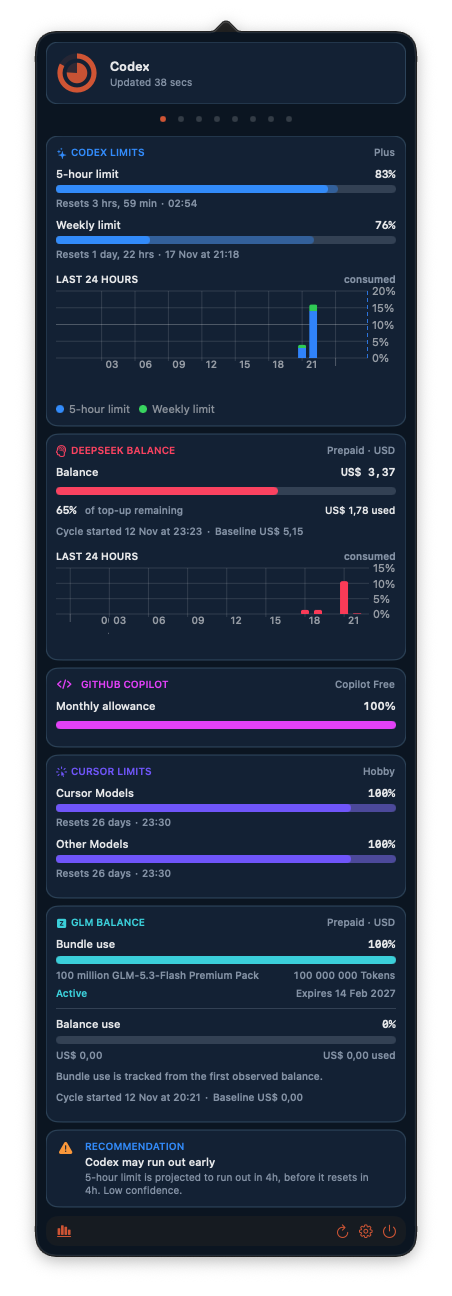
Compare consumption pace with the time until your allowance resets. Usage insights help you spot when your current pace may use up capacity early.
Drag your stats into view
Alongside the ring/pie indicator in your menu bar, you can drag a stats card out of Usage History and place it beside your work. The card stays on top of other windows, keeping useful insights in view.
Reset times in view
Check the allowances your provider exposes without opening another dashboard.
Estimates with context
See forecast confidence alongside the next reset. Estimates depend on your history and usage patterns.
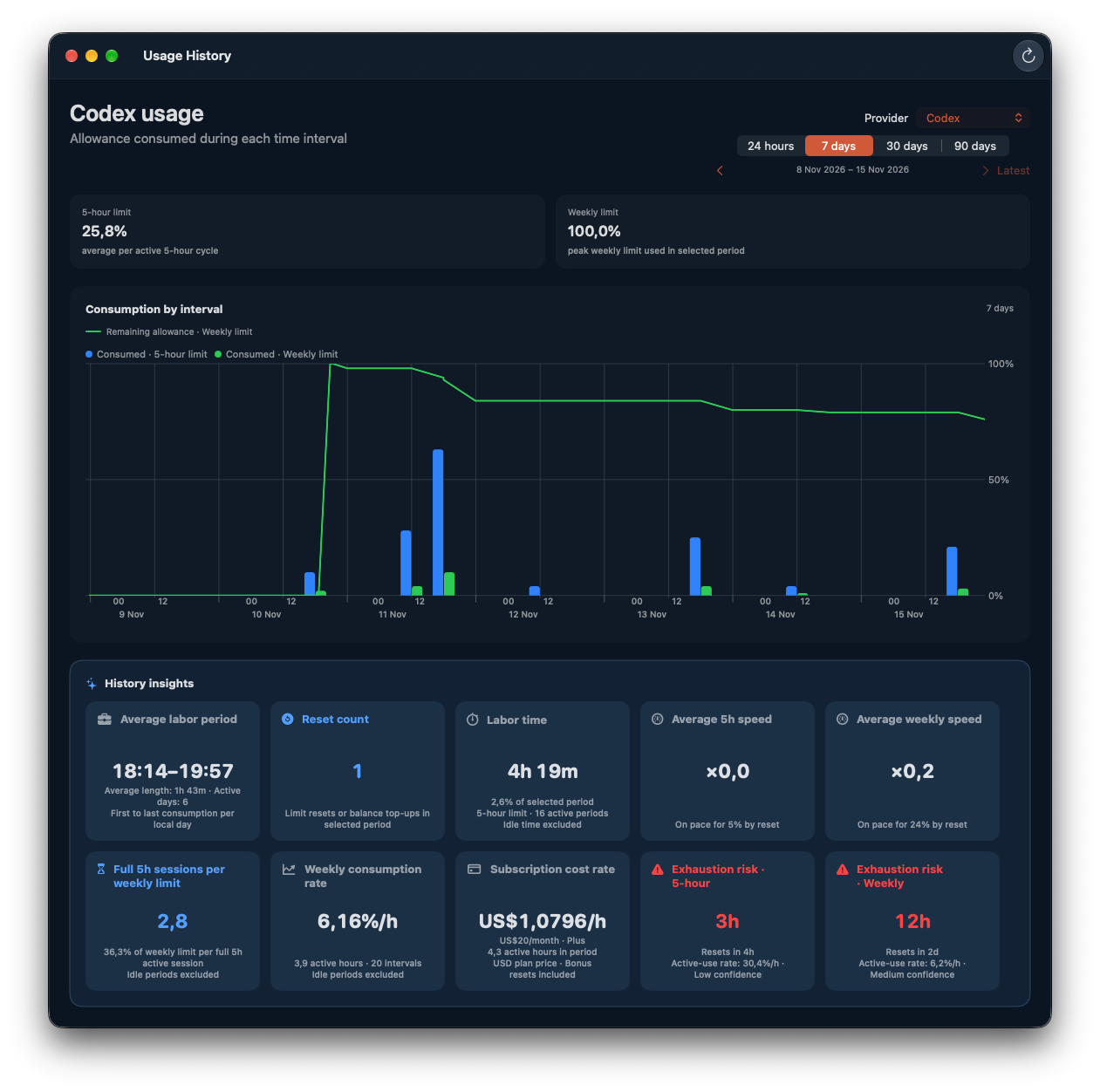
Make history useful.
Explore up to 90 days of local history by provider and period. Find consumption patterns and reset cycles as your history builds.
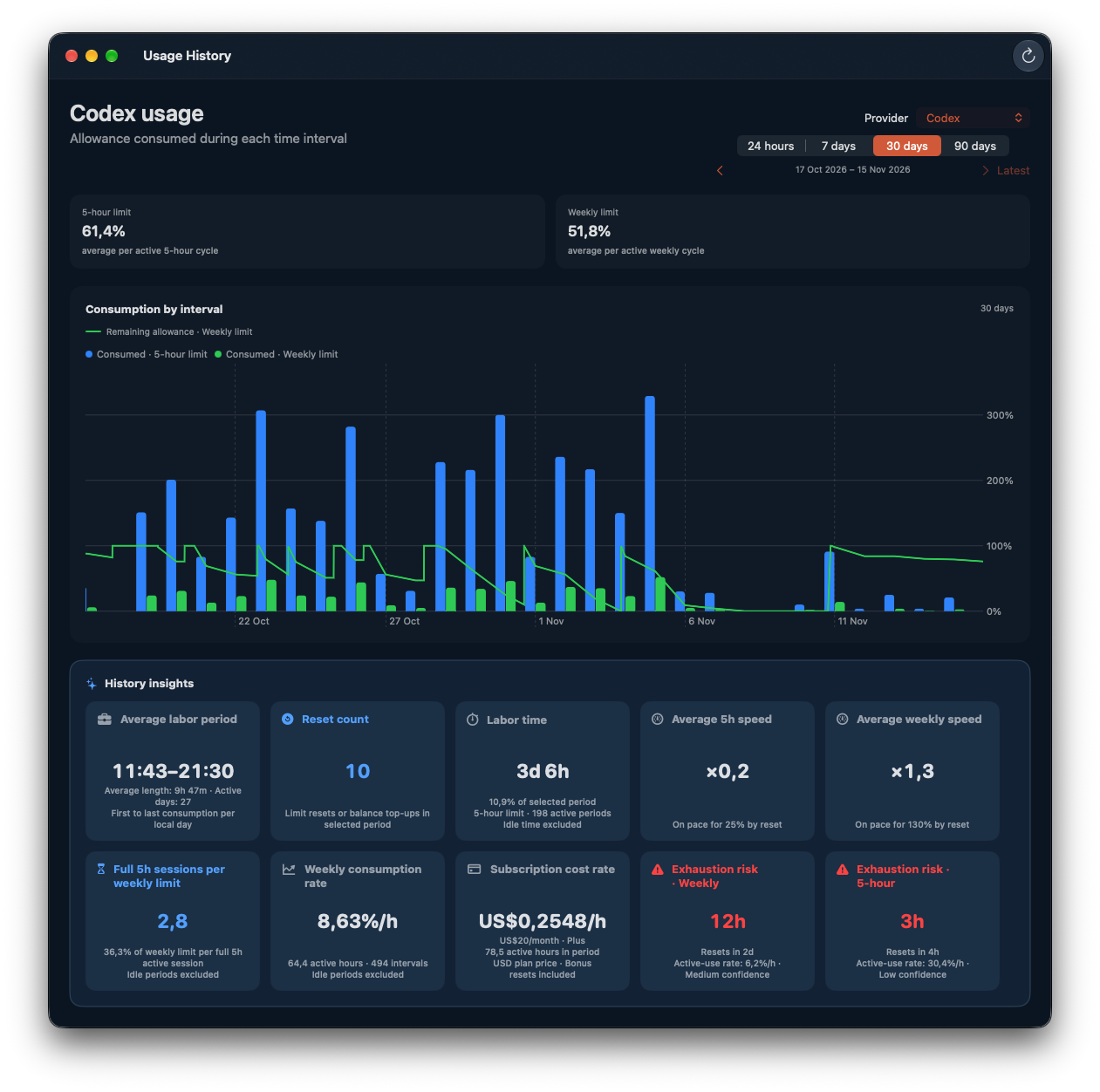
Usage-derived active-time figures are estimates, not a measurement of all work performed.
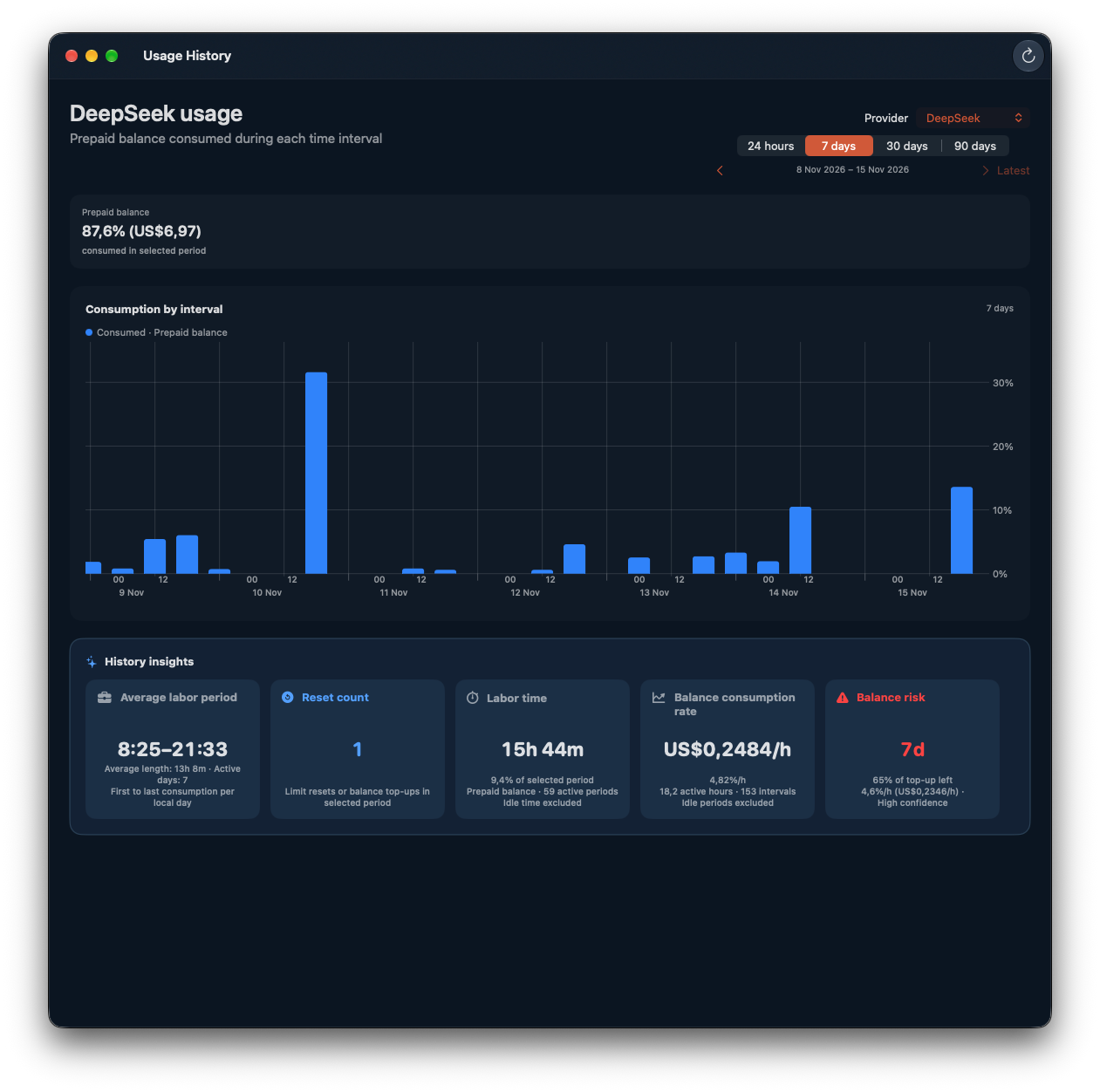
Your credits.
A clearer picture.
Track supported prepaid balances against the latest top-up baseline. Review consumption rates and spending history in the same app as your subscription allowances.
Available balance and bundle details depend on the connected provider.
Your image.
Your app palette.
A photograph, a painting, a favorite piece of artwork. Choose an image and let My Limits build a custom theme for the app.
It extracts colors from your reference to create light and dark palettes. Apply the palette you prefer across the app’s windows, cards and controls.
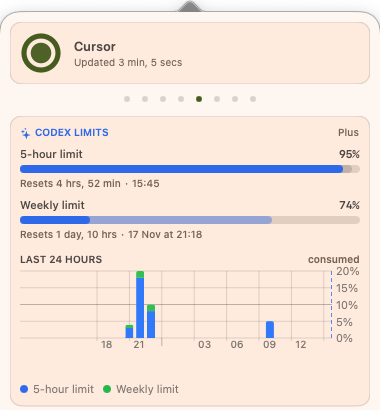
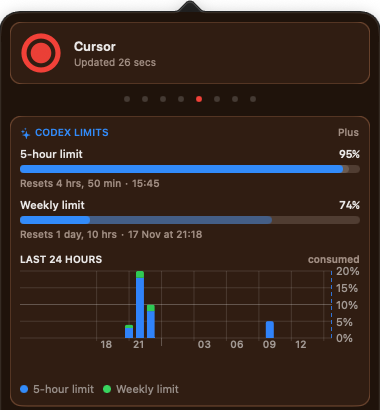
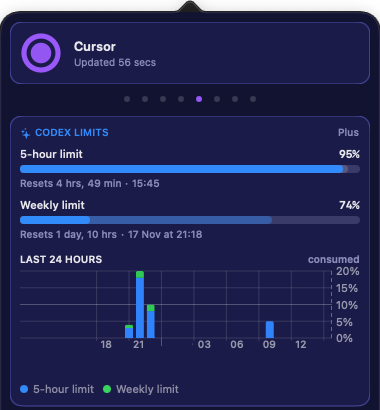
Choose an image
Open Settings → General → Appearance, then choose Create Theme from Image.
Create your palette
The app extracts image colors and builds light and dark versions of your custom theme.
Make it yours
Use your preferred palette, or replace the reference image when you want a different look.
Custom theming is a feature of the macOS app. Supports readable, single-frame images in supported formats; some images may not contain enough color information to create a theme.
Your history stays
on your Mac.
Local history
Explore your usage without a developer-operated history server.
Keychain credentials
Provider connection credentials are stored in macOS Keychain.
Provider connections
Requests go directly to your selected provider, under its own privacy practices.
Connect. Check. Keep working.
Install on your Mac
My Limits is planned for distribution through the Mac App Store.
Connect your providers
Sign in or supply an appropriate provider key. Availability depends on your plan.
Build a clearer view
Check current limits, explore history as it accumulates and enable optional alerts.
Before you get started.
Which AI services can I connect?
My Limits is designed to support ChatGPT/Codex, Claude, GitHub Copilot, Cursor, Windsurf/Devin Desktop, DeepSeek, GLM and GLM Coding Plan. Available allowances, balances and organization features depend on your account and plan. Check the provider compatibility information before purchase.
Do I need an iPhone or a separate My Limits account?
No. My Limits is a macOS app and does not require an iPhone or a developer-operated My Limits account. You connect your own provider accounts.
Does my usage data leave my Mac?
Usage history stays on your Mac and is not uploaded to a developer-operated My Limits history server. Signing in and refreshing usage sends authenticated requests directly to the providers you connect. Those providers receive the credentials and technical information needed for the request under their own privacy policies. Read the Privacy Policy for details.
How do I connect a provider?
Choose your provider in Settings → Connections. Depending on the service, sign in on its provider login page or enter an appropriate API key. Connection credentials are stored in macOS Keychain. An API key for an organization or prepaid balance does not necessarily provide personal subscription limits.
Why am I connected but cannot see numeric limits?
A provider may authenticate your account without exposing numeric allowances for your plan. Refresh the connection and read its availability notice in Settings. If the information remains unavailable, contact support with your provider, plan and app version. Never send passwords, API keys or session cookies.
Are exhaustion forecasts guaranteed?
No. Estimates depend on available history, observed consumption and provider data. Confidence can change, and some forecasts need more samples. Always read the estimate alongside its reset time and confidence label; confirm important allowance or billing decisions with the provider.
Does disconnecting a provider erase my history?
No. Disconnecting retains local history. To erase usage and balance history, use Settings → General → Usage history → Erase Usage History. That action does not disconnect providers or remove preferences and productivity check-ins. New history can accumulate while connections remain active.
Can I keep stats visible while working?
Yes. Alongside the ring/pie indicator in your menu bar, you can drag a stats card out of Usage History and place it beside your work. The card stays on top of other windows, keeping useful insights in view.
Can I create an app theme from my own image?
Yes. In Settings → General → Appearance, choose Create Theme from Image. My Limits extracts colors to generate light and dark palettes for the app. Supported formats include PNG, JPEG, HEIC, TIFF, GIF, BMP and WebP, subject to file and pixel-size limits. Use a single-frame image under 50 MB; animated or multi-page images are not supported, and an image needs enough usable color information.
Can I request a refund?
Once My Limits is available for purchase through the Mac App Store, refund requests can be submitted to Apple at reportaproblem.apple.com. Eligibility depends on the purchase and applicable rules; approval is not guaranteed. Your statutory consumer rights remain unaffected. Apple refund guidance
Keep your next limit in view.
Join the beta list to hear when a testing place is available.